

If your team has requested your travel profile, follow the steps below to share. To learn more about we protect your sensitive information, you can check out this post.
Step 1: Check for the travel profile request
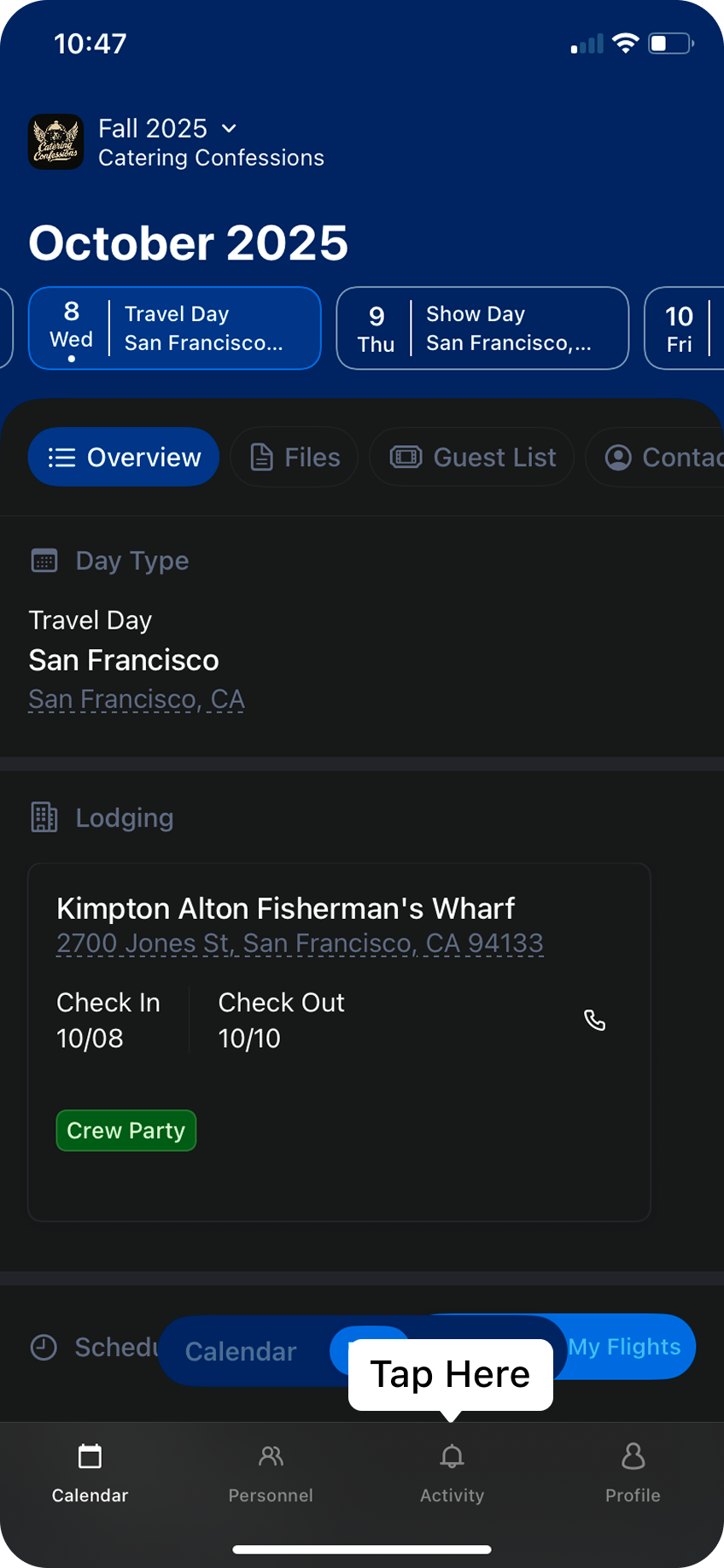
In the bottom menu click the activity tab. and look for the travel profile request in the list of notifications. If you don’t see the request, and were expecting one, try quitting the app and re-opening. If you still don’t see the request, check with your administrator to ensure they sent a request.
In the bottom menu click the activity tab. and look for the travel profile request in the list of notifications. If you don’t see the request, and were expecting one, try quitting the app and re-opening. If you still don’t see the request, check with your administrator to ensure they sent a request.
Step 2: Review the travel profile request
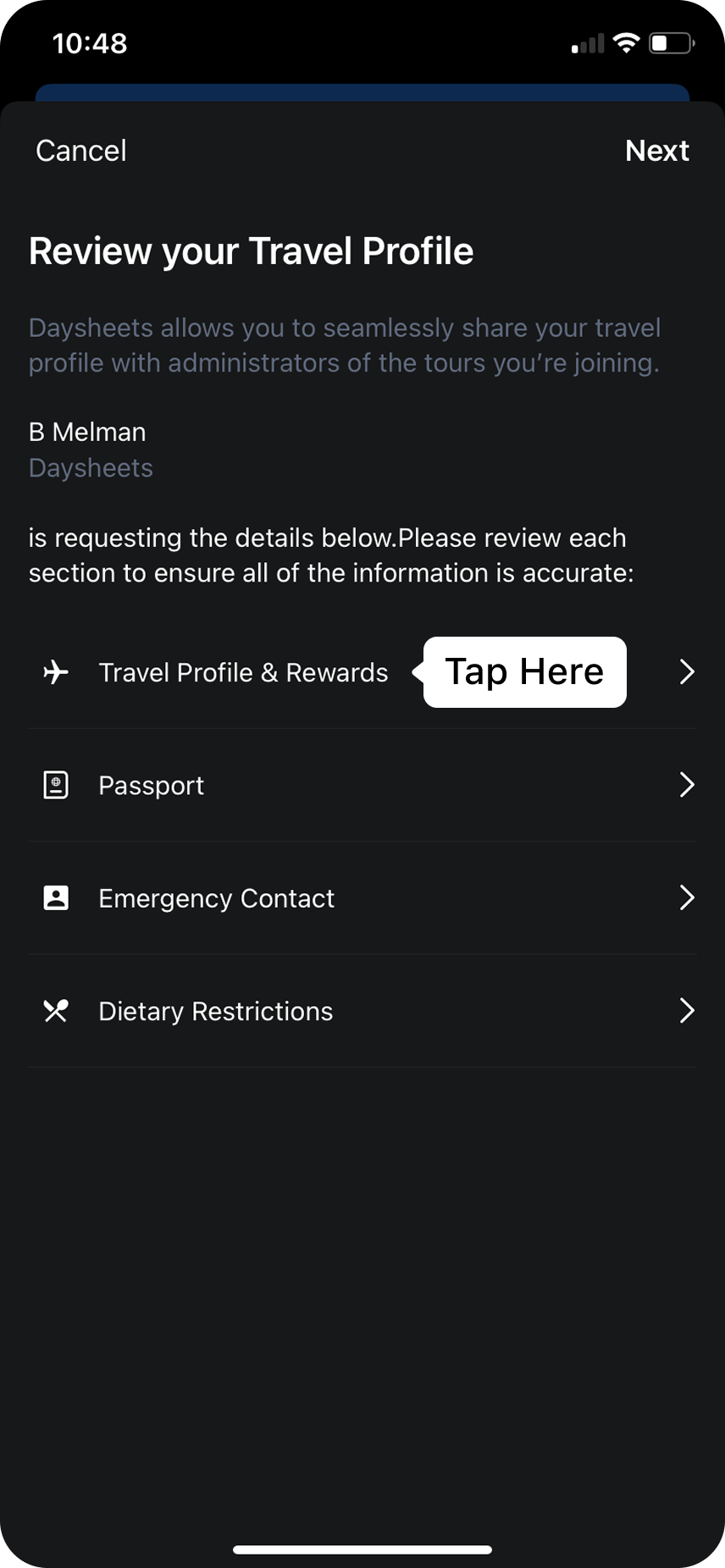
Click on the request to start review the details the tour is requesting from your travel profile. If you tap in on any of the fields, Daysheets will allow you to enter missing information, which will store to your travel profile.
Click on the request to start review the details the tour is requesting from your travel profile. If you tap in on any of the fields, Daysheets will allow you to enter missing information, which will store to your travel profile.
Step 3: Approve and Share your profile
After filling out and updating the information in your profile, approve each of section of your profile that you want to share with the tour, and then click
After filling out and updating the information in your profile, approve each of section of your profile that you want to share with the tour, and then click
Next.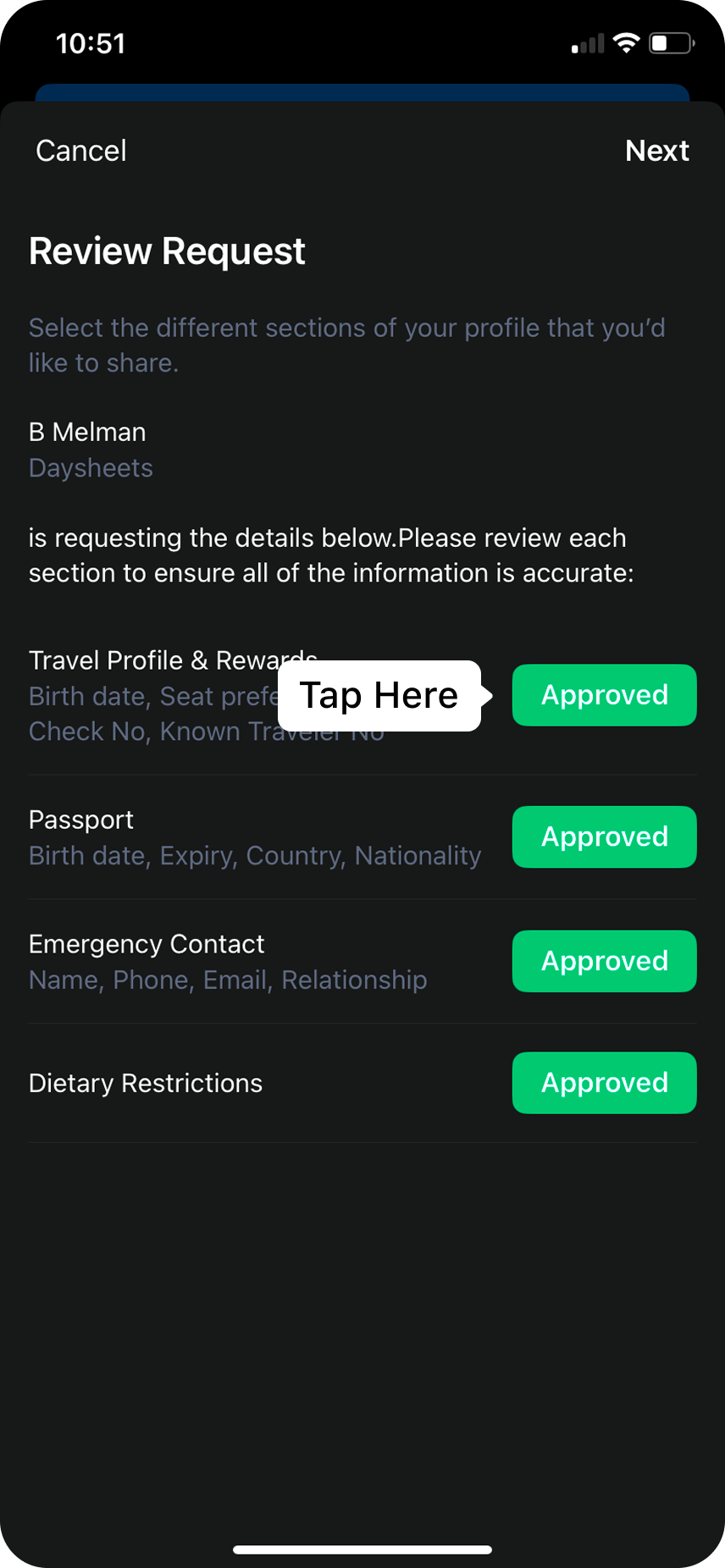
Lastly, review the details that are about to be shared with your tour’s administration, and tap
Share when you are ready.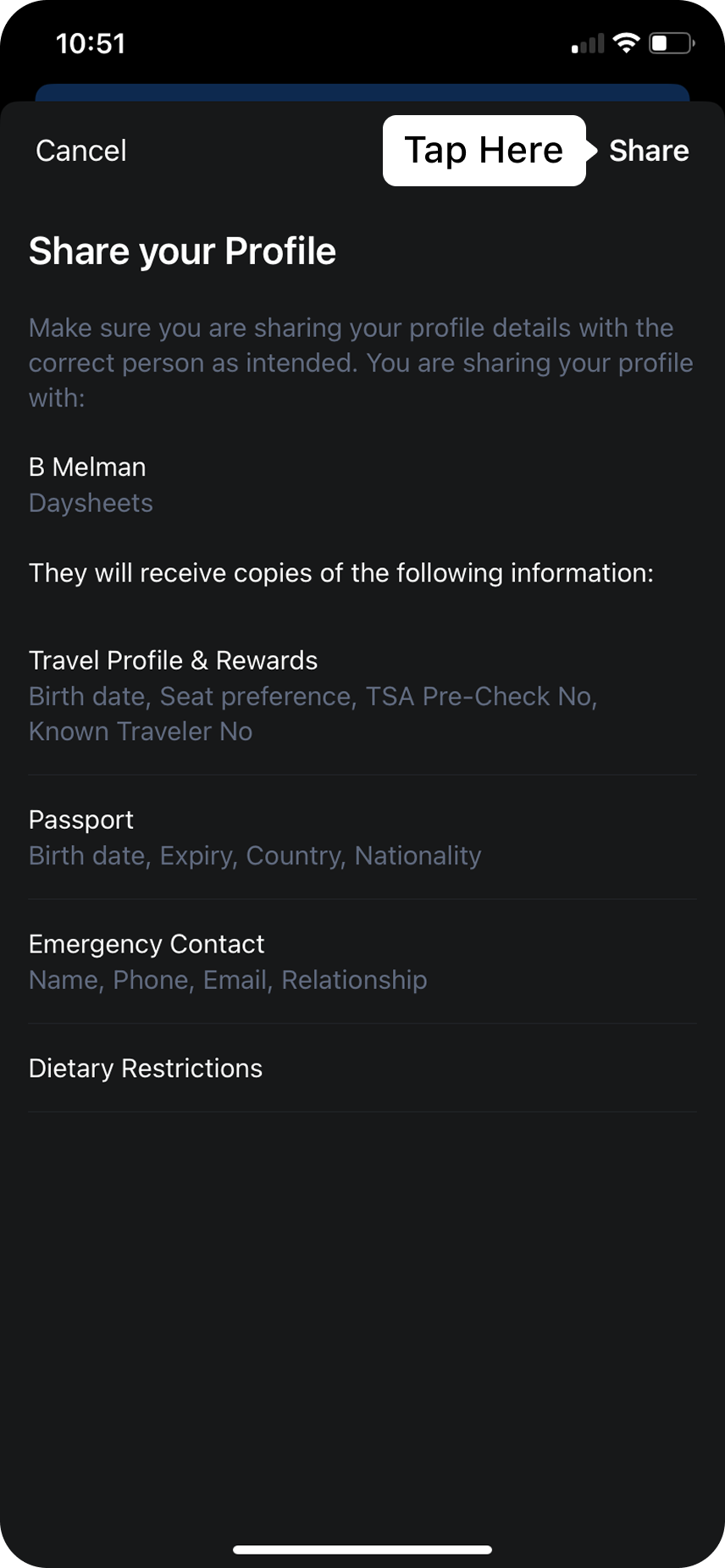
Open Communication
Your trust is our top priority, so if you have any concerns or questions about how we manage and protect your data, we are is here to help. You can reach us through the following channels:- Chat with us at www.daysheets.com
- Email us at help@daysheets.com
- Call us at 610-608-1173